 VLC Media Player
 English
 العربية
 Français
 Deutsch
 Español
 中文
中文 日本語
日本語 한국어
한국어 हिन्दी
 Русский
 Português
 ไทย
ไทย Türkçe
 繁體中文
繁體中文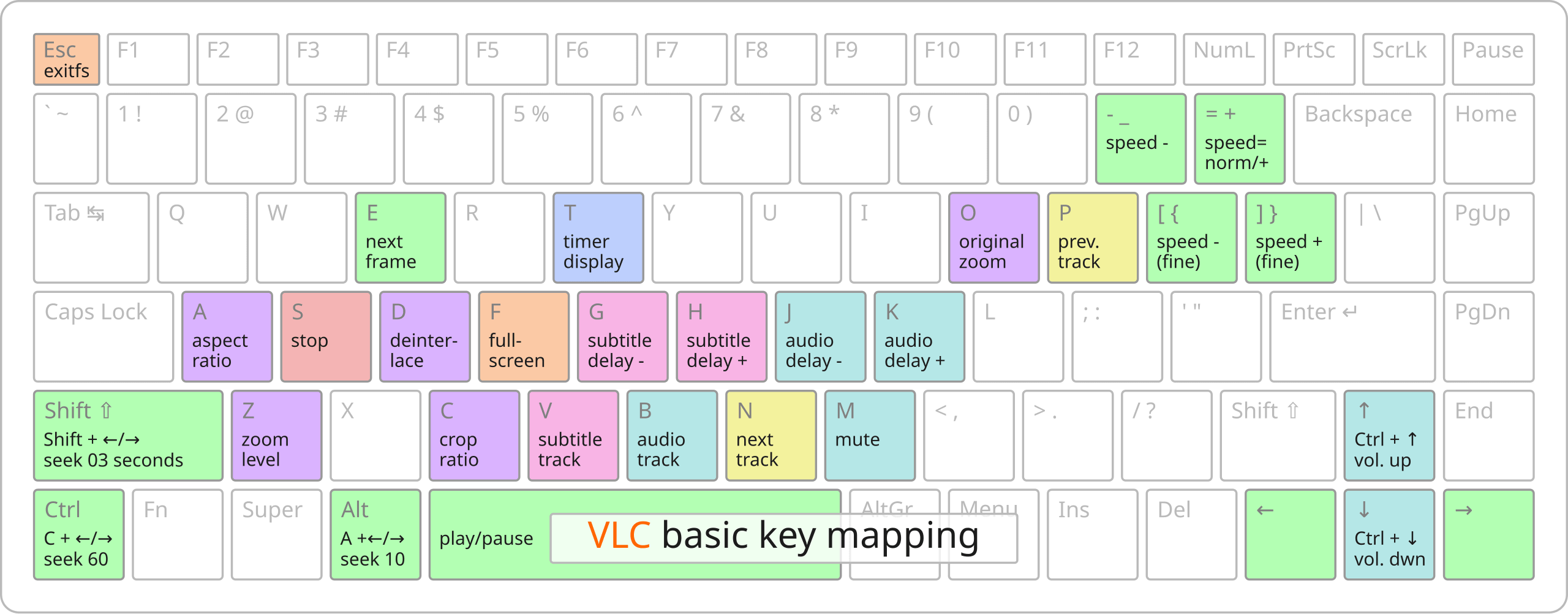
Keyboard Shortcuts
Master VLC with these essential keyboard shortcuts. Speed up your workflow and control playback without reaching for the mouse.
- Space – Play / Pause
- F – Fullscreen
- M – Mute
- Ctrl/Cmd + Up/Down – Volume
- Ctrl/Cmd + Left/Right – Seek
- E – Next frame
- S – Subtitle delay
Getting Started
Open VLC, drag and drop media files, or use Media → Open File. VLC supports almost every format, so you rarely need to install codec packs.
Common Issues
Video or audio not playing
Try Tools → Codec Information to see which codecs are in use. If a format is unsupported, VLC may suggest converting the file or using a different source.
Subtitles not showing
Use Subtitles → Add Subtitle File to load an external subtitle file. Ensure the subtitle file has the same name as the video (e.g., movie.mkv and movie.srt) for auto-loading.
Playback is choppy
Enable hardware decoding: Tools → Preferences → Input/Codecs, then set Hardware-accelerated decoding to Automatic or your GPU type.
Download VLC
Don't have VLC yet? Download the free media player for Windows or Mac and enjoy playback of virtually any video or audio format.